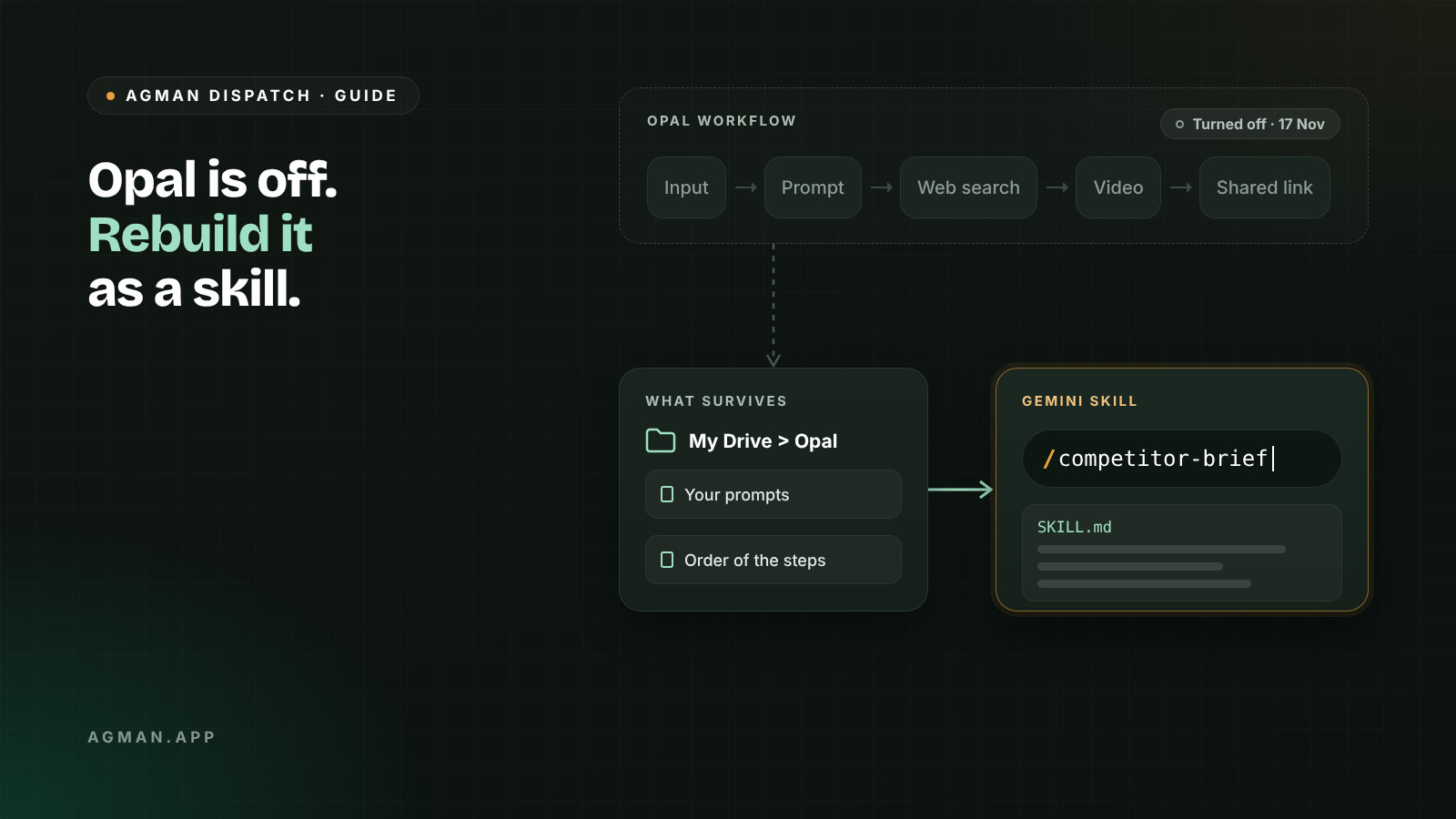
If you built a mini-app in Google's Opal, it stopped working on 17 November 2026. Google turned off opal.google that day, along with "Gems made by Labs", the version of Opal that ran inside the Gemini app. Links to Opal apps, including ones you shared with other people, now open Google's Opal FAQ instead of the app.
The short answer: your work isn't deleted, but it won't move by itself. Google says the Opal files stay in your Google Drive under My Drive > Opal, and it points people to skills in Gemini as the replacement. Rebuilding is manual. This guide explains what you still have, where a skill is a fair replacement and where it isn't, and how to rebuild one workflow properly instead of pasting a prompt and hoping.
What exactly did Google shut down?
Opal was a Google Labs experiment, opened as a public test in July 2025, for building small AI apps without code. It chained steps together: take an input, run a prompt, call a tool such as web search, generate text, an image or a video, and show the result in a simple app other people could open from a link. Google says what it learned from Opal went into skills in Gemini.
Two things went offline on 17 November:
- opal.google, the standalone builder, and every app made with it;
- Gems made by Labs, the Opal-powered mini-apps inside Gemini, including the premade ones.
Ordinary Gems are a separate case. They aren't being switched off with Opal. For personal Google accounts they are being converted into skills automatically (more on that below). Opal apps are not converted at all.
What survives in your Google Drive
Open Google Drive and go to My Drive > Opal. Google says those workflow files remain there and won't be deleted or changed. What you lose is the thing that ran them. The files are now a record of what you built, not a working app.
What's worth recovering is the human part: the instructions you wrote, the order of the steps, the inputs you asked for and the format of the result. TechRepublic describes downloading the files and reading the prompt text in a plain-text editor. Start with your most-used apps, and save each set of prompts as a text document named after its job ("Weekly competitor summary", not "Opal 3").
Opal apps vs Gemini skills: what changes
| Opal app | Gemini skill | |
|---|---|---|
| What it is | A chain of steps with its own small app screen | Saved instructions, plus optional reference files, that Gemini follows in a chat |
| How you run it | Open the app or its link | Type / in the Gemini prompt bar and pick the skill, or let Gemini apply it when it fits |
| Who uses it | You, or anyone you shared the link with | You, in your own Gemini chats |
| Media steps | Could chain text, image and video generation | Video and music creation, Canvas, Deep Research and Guided Learning don't work inside skills yet |
| Format | Google-only | SKILL.md, the same open format other AI assistants use; you can upload one made elsewhere |
Google introduced skills on 30 September 2026 as a way to save the instructions you use most and run them again by typing a slash. You can stack more than one skill on a larger task. Google's help centre adds that skills work with connected apps such as the Workspace apps, that you can create as many as you like but have only 100 active at once, and that the feature is for personal accounts of people aged 18 and over, rolling out gradually. Skills are available in the Gemini web app, the mobile app and the Mac app.
The practical consequence: a skill replaces the thinking in an Opal app, not the app itself. If your Opal was mainly a well-written prompt with a clear output, a skill can do the same job and is easier to maintain. If it was a little tool that colleagues or customers used through a link, or it produced a video at the end, a skill won't cover that on its own.
How to rebuild an Opal workflow as a skill
Work through one app at a time, most-used first.
1. Write down the job in one sentence
Before copying any prompt, say what the app was for: "Turn a product URL into a one-page competitor brief." This becomes the skill's description. Gemini can apply a skill when a request matches it, so a vague description ("helps with research") may never trigger, or trigger at the wrong moment.
2. Turn the steps into ordered instructions
An Opal app split the work into boxes. A skill needs the same steps written as instructions Gemini can follow in one conversation. Keep your original wording where it worked, and add what the boxes used to do silently: which input to ask for if it's missing, which step needs a web search, and what the final answer should look like.
3. Move fixed material into reference files
Style rules, a template or a sample of good output belong in reference files attached to the skill, not pasted into every chat. Reports on Google's upload requirements list Word and Excel files (.docx, .doc, .xlsx) as unsupported, so convert those to PDF, plain text or Markdown.
4. Create the skill and test it on a real input
You can write a skill manually, ask Gemini to draft one with you, or upload a SKILL.md file. Do the first one on a computer: Google's help page lists a known issue where manually created skills don't save in the mobile app. Then run it on an input you once ran through Opal and compare the results. If the skill misses a step, the fix is usually in the instructions.
5. Replace what a skill can't do
For each step that relies on an unsupported feature, decide where it goes. A video step may become a separate request after the skill finishes. A tool other people opened by link needs a different home, such as a shared document or a no-code app builder.
Two worked examples
Both examples are hypothetical. They show how the rebuild works, not results AGMAN measured.
Example 1: a research brief (a good fit)
Say your Opal app took a company's website, searched the web for recent news, and returned a brief with five fixed headings. Nearly all of that is instructions, so it moves cleanly. A minimal skill needs a name, a description and the steps:
- Name:
competitor-brief - Description: Turns a company website URL into a one-page competitor brief with five fixed sections. Use when the user shares a competitor's URL and asks what they do or how they compare.
Instructions:
- If no URL is given, ask for one. Do not guess the company.
- Read the site, then search the web for news from the last 90 days.
- Write the brief under these headings: What they sell, Who it's for, Pricing approach, Recent changes, What to watch.
- Mark anything you could not confirm as "not confirmed".
- Keep it under 400 words. Link every news item you mention.
In a SKILL.md file, the name and description sit in a short header at the top and the instructions follow underneath. Run it with /competitor-brief and a URL. Steps 4 and 5 replace what Opal's fixed output screen used to enforce: length, and honesty about gaps.
Example 2: a product video from a script (a partial fit)
Now say your Opal app took a product description, wrote a 30-second script, then generated a short video. The script half moves into a skill easily. The video half doesn't, because video creation doesn't work inside skills yet. The honest rebuild is a skill that writes the script and a shot list, followed by a separate video request or another tool.
When a skill is the wrong replacement
Skills suit work you do yourself, in a chat, with a predictable shape. Three things Opal did fit less well.
Apps for other people. Someone else could open your Opal app from a link. A skill lives in your own Gemini account. Sharing was described at launch as coming later, so check Google's current help page before you plan around it.
Work that should run without you. A skill runs when you call it in a chat. It isn't a scheduler. A report that should arrive every Monday morning is a job for an automation tool or an agent with scheduling, not a saved instruction.
Long chains of media generation. If each run ended in an image set or a video, expect to split the work in two for now.
There's a fair case for not rebuilding at all. If you haven't used an Opal app in a month, keep the file in Drive and move on.
Keep your prompts portable this time
The part of an AI workflow you own is the written instruction: what you ask for, in what order, with which examples. The builder around it can disappear, as Opal did after about 16 months. A SKILL.md file is plain text in an open format, and Google lets you download a skill as a .zip, so keep a copy of every skill you rely on outside Gemini. It's the question to ask of any AI builder before you commit: what does it take to leave? We compared four app builders on exactly that in Lovable vs Bolt vs Replit vs Cursor.
Checklist: moving off Opal this week
- Open My Drive > Opal and list the apps you used in the last month.
- Copy each app's prompts into a named text document.
- Write the job of each app in one sentence.
- Rebuild the most-used one as a skill on a computer, and test it on a real input.
- Note any step that used video generation, Canvas or Deep Research, and decide where it goes now.
- Tell anyone you shared an Opal link with that it no longer works, and what replaces it.
- Save a copy of each new skill outside Gemini.
FAQ
Can I still open or run my Opal apps?
No. opal.google was turned off on 17 November 2026, and links to Opal apps, including shared ones, now lead to Google's Opal FAQ. The workflow files remain in My Drive > Opal.
Will Google convert my Opal apps into skills?
No. Ordinary Gems on personal accounts are being converted to skills automatically. Opal apps and Gems made by Labs are not, so you need to rebuild the ones you want to keep.
Do I need a paid Gemini plan to use skills?
Google's help centre lists skills for personal Google accounts of people aged 18 and over, without requiring a paid subscription. Several reports also note that skills need Gemini's Keep Activity setting turned on, so check that before you start.
What happens to my regular Gems?
For personal accounts, Gems became read-only on 17 November 2026 and are being converted into skills, with supported files. Reports of Google's help page put their removal on 17 December 2026. Workspace business, enterprise and nonprofit accounts follow from March 2027, and education accounts from June 2027. Download any Gem files you care about before December.
Can I use a skill I wrote for another AI assistant?
Yes, if it's a SKILL.md file. Google's help centre says you can import skills made on other platforms by uploading their SKILL.md files. Check that its instructions don't rely on tools Gemini doesn't offer.
Sources
- Google for Developers, Opal: Frequently asked questions (checked 18 November 2026).
- Google Keyword blog, Let skills in Gemini tackle your most repetitive tasks, Deven Tokuno, 30 September 2026.
- Gemini Apps Help, About the transition from Gems to skills (checked 18 November 2026).
- TechRepublic, Google Opal shuts down Nov. 17: your AI apps won't transfer automatically, 17 November 2026.
- Notebookcheck, Google Gemini starts turning your Gems into skills on November 17, September 2026.